Templates
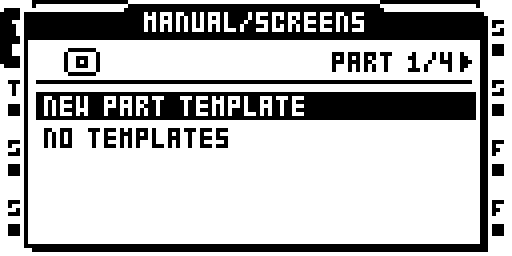
BRAIN: Templates
A template stores a reusable setup. Use LEFT / RIGHT to choose the PART, FX, MIDI, or PROJECT tab.
- Select NEW and press YES to create a template.
- Enter a name and confirm with YES.
- Select the saved template to open its actions and values.
- Choose APPLY TO… to apply it, or SET AS DEFAULT to use it as a starting point. CLEAR DEFAULT removes that assignment.
The template screen also provides SAVE, RENAME, and DELETE.
- PART templates hold a whole Part, applied by section and track: FX, LFO, INPUT SRC, MIDI TRACKS, SCENES, MACHINES.
- FX templates store an effect page; applying one to a different effect replaces that effect. MIDI templates store a MIDI track's pages.
- PROJECT templates cover the stock PROJECT / CONTROL / MIDI screens. SET AS DEFAULT on one makes it the settings of every new project.
PART templates leave the project's sample slots, AMP pages, FLEX and STATIC SRC pages, and levels unchanged. Applying a PART template lets you choose the whole Part, a section across tracks, or a source and destination track. A PART default supplies Part Clear and the Parts of a new project.
Use LEFT / RIGHT or the encoder to edit values. NO returns to the previous screen; unsaved edits prompt SAVE CHANGES?. A name already in use is refused.
Page shortcut
A page shortcut saves and loads the page in front of you as a template: hold a page key (SRC, AMP, LFO, FX1, FX2) and press FUNC. The list that opens has SAVE FX DEFAULT, CLEAR FX DEFAULT, SAVE TEMPLATE, LOAD TEMPLATE, DELETE TEMPLATE (plus NAME KNOB on a MIDI track). On an MKII, FUNC + a push of the LEVEL encoder opens TOOLS > LOAD.
SAVE FX DEFAULT stores the current FX page as the default for that effect when it is newly selected. CLEAR FX DEFAULT removes the stored default. SAVE PROJECT updates its recovery copy.
On a MIDI track, NAME KNOB gives each of the ten assignable CCs a label of up to four characters on CTRL1 and CTRL2. An empty name clears it.